My mom called me, pretty shaken, last spring. Her neighbor had triggered an SOS alert by accident — and the neighbor’s daughter had received a text out of nowhere saying her mom was in an emergency. No context. Just a location pin and a message.
She was fine. But the daughter had no idea the feature even existed, let alone that it was turned on.
That story stuck with me, because it points to a question almost nobody thinks to ask until it’s too late: does your emergency contact actually get notified automatically when you trigger an SOS?
The short answer is: yes — but only if you’ve set it up correctly first. The notification doesn’t happen by magic. It depends on your phone, your settings, and which type of SOS you trigger.
Here’s exactly what happens on both iPhone and Android.
✅ Quick Summary
| Situation | Does your emergency contact get notified? |
|---|---|
| iPhone Emergency SOS (called 911) | ✅ Yes — text + location sent automatically after call |
| iPhone Emergency SOS via Satellite | ✅ Yes — if set up in Health app beforehand |
| iPhone Crash Detection / Fall Detection | ✅ Yes — if emergency contacts are saved in Health app |
| Samsung Galaxy SOS (side button 3–5x) | ✅ Yes — text + location + photo + audio sent |
| Google Pixel / Android SOS | ✅ Yes — location shared if Emergency Sharing is on |
| Someone manually calls 911 for you | ❌ No — your contacts are not notified |
| You simply list someone as “emergency contact” in your phone | ❌ No — that alone does nothing automatically |
What Actually Happens on iPhone
When you trigger Emergency SOS on an iPhone — by pressing the side button rapidly or holding side + volume — and a call to emergency services connects, your iPhone does two things automatically after the call ends.
First, it sends a text message to every contact listed in your Medical ID as an emergency contact. Once the call with emergency services ends, your emergency contacts will receive a text message with your current location, unless you choose to cancel the call. Reader’s Digest
Second, it keeps sharing your location with those contacts as it changes. If Location Services is disabled, it will be temporarily enabled in order to notify your emergency contacts with your location. When your location is being shared, you’ll get a reminder to stop every four hours for 24 hours. Apple
There’s one important catch Apple mentions directly: your emergency contacts will not be automatically notified if the Messages app is not the selected text messaging app or is deleted. Apple Support So if you’ve switched your default texting app to something else, that setting will break the notification.
What your emergency contact actually receives
They get a standard SMS text. If they’re on iPhone with iOS 16.4 or later, they can receive a live transcript of your conversation with emergency services, including a map with your location and the messages you exchange with emergency services. Apple Support If they’re on Android or an older iPhone, they get a plain text alert with a location link.
Emergency SOS via Satellite
If you’re in an area with no cellular or Wi-Fi signal and you’re on iPhone 14 or later, you can choose to notify and share information with your emergency contacts when you text emergency services with Emergency SOS via satellite. When you choose to share this information, your emergency contacts get these messages automatically. Apple Support
This one requires setup inside the Health app before you go somewhere remote. It won’t work if you haven’t configured it first.
What Actually Happens on Android
Samsung Galaxy
Samsung’s built-in SOS feature works differently from iPhone — and in some ways, it sends more information.
When you click the power button three or four times, your emergency contacts will receive an SOS message, links to a map and the audio clip, photos and auto call (if those features have been activated). Samsung Business Insights
That’s a text message with your GPS location, a five-second audio recording from your microphone, and photos from your front and rear cameras — all sent automatically.
It will send updated locations every 15 minutes for a span of 24 hours until the alert is stopped. Samsung
You can add up to four contacts to receive these alerts. To set it up: Settings → Safety and emergency → Send SOS messages — toggle it on and add your contacts.
Google Pixel and Stock Android
On devices running Android 12 or later with the Google Personal Safety app, Emergency SOS works similarly. After you start an emergency call, other emergency actions begin based on your settings. If you turned on Emergency Sharing and video recording, these actions will start while your call is placed to emergency services. Google Support
Location sharing with contacts requires an active internet connection to work — so it won’t function if you’re completely offline.
The Biggest Mistake People Make
I’ve helped a lot of older family members set up their phones, and this is the part almost everyone gets wrong.
Listing someone as your “In Case of Emergency” (ICE) contact in your phone’s contacts app does absolutely nothing automatically. It’s just a label. First responders can read it if they unlock your phone, but it doesn’t trigger any notification on its own.
The notification only happens through:
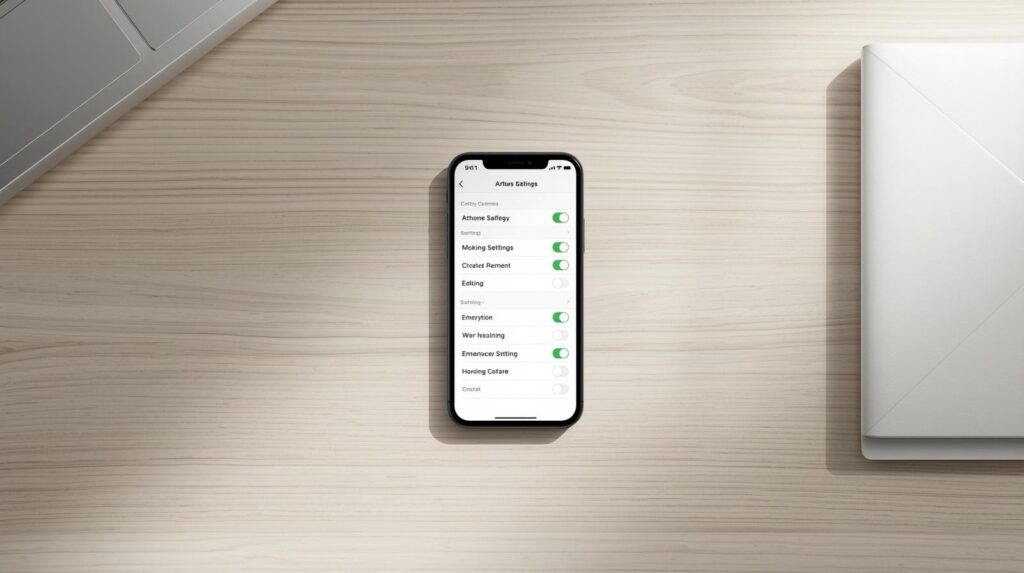
- iPhone: Contacts added inside the Health app → Medical ID → Emergency Contacts
- Samsung Galaxy: Contacts added inside Settings → Safety and emergency → Send SOS messages
- Google Android: Contacts added inside the Personal Safety app → Emergency SOS setup
If you set up your emergency contact in only one of these places and not the other, the feature tied to the other place simply won’t fire.
I went through this with my dad’s Galaxy phone last year. He had me listed as a contact, but hadn’t ever gone into Safety and Emergency to add my number there. When I tested the SOS feature, I got nothing. Took about two minutes to fix once we found the right menu.
One More Thing: Manual 911 Calls Don’t Trigger This
This surprises a lot of people. If someone calls 911 on your behalf — a bystander, a nurse, a neighbor — your emergency contacts receive no automatic notification. The automatic text only goes out when the SOS feature on your own phone initiates the call.
Similarly, if a first responder calls 911 after finding you unconscious, your phone doesn’t know to send the alert. This is why having your Medical ID visible on your lock screen matters separately — it gives responders the information they need even if the automatic notification chain never started.
How to Check Your Setup Right Now
On iPhone:
- Open the Health app
- Tap your profile photo → Medical ID
- Scroll down to Emergency Contacts — confirm the right people are listed
- Go to Settings → Emergency SOS — make sure your preferred trigger method is on
On Samsung Galaxy:
- Open Settings → Safety and emergency
- Tap Send SOS messages — toggle should be on
- Confirm your contacts are listed under recipients
- Optionally enable: Attach pictures, Attach audio recording, Auto call
On Google Pixel / Android:
- Open the Personal Safety app
- Tap Emergency SOS → Start setup
- Add your emergency contacts and confirm Emergency Sharing is enabled
FAQ
Q. Will my emergency contact know what happened, or just that something is wrong?
On iPhone, they receive your location and — if they’re on a recent iPhone — a live transcript of your conversation with emergency services. On Samsung, they get your location, a five-second audio clip, and photos. Either way, they’ll have enough to understand the situation and act quickly.
Q. What if my emergency contact doesn’t have a smartphone?
They’ll still receive a standard SMS text with a location link. The link opens in any mobile browser, so they don’t need a specific app. The live transcript feature on iPhone requires iOS 16.4 or later, but the basic location text works on any phone that can receive SMS.
Q. Can I test this without actually calling 911?
On Samsung, you can do a limited test by triggering the SOS and canceling before the call goes through — your contacts may still receive the message depending on timing. On iPhone, there’s no official dry-run option. The best approach is to call your emergency contact directly and walk them through what they’d receive, so they know what to expect and won’t panic when it arrives for real.
Bottom Line
Your emergency contact does get notified automatically — but only if you’ve done the setup work first. The phone doesn’t read your mind about who you’d want called. You have to tell it.
The good news is that setup takes about five minutes on any phone. If you haven’t done it yet, or you’re not sure whether the people you set up years ago are still the right ones, today is a good time to check.
You Might Also Like
- How to Set Up Emergency Contacts on iPhone for Seniors (Medical ID & SOS Guide)
- How to Set Up Emergency Contacts on Android (Important Safety Feature for Seniors)

스마트폰과 IT 기기를 오랫동안 직접 구매하고 사용해온 일반 사용자입니다.
화려한 스펙보다 “실제로 쓸 만한가”를 더 중요하게 봅니다.
갤럭시와 아이폰을 병행 사용하면서 느낀 점, 설정하면서 막혔던 것들,
부모님 폰 세팅해드리며 깨달은 것들을 솔직하게 정리하고 있습니다.
특히 스마트폰을 어렵게 느끼는 분들, IT 초보자, 부모님 세대를 위한
쉽고 실용적인 가이드에 집중합니다.
“나도 해봤는데 이렇더라” — 그 한마디가 이 블로그의 시작이었습니다.
📩 문의 및 제보: kim.wasp@gmail.com