The first time I tried to connect my phone to a rental car’s infotainment system, I spent 15 minutes in a parking garage going in circles — literally and figuratively.
The car had a shiny touchscreen. My iPhone had a perfectly good GPS. But getting the two to actually talk to each other? Nobody tells you the specific steps, and the car manual reads like it was translated by a robot.
That was three years ago. Since then I’ve connected phones to a dozen different vehicles — Teslas, Hyundais, a Ford F-150, a Chevy Silverado, a Honda CR-V — and the process is almost always the same once you know what you’re doing.
This guide walks you through every connection method, both iPhone and Android, wired and wireless. By the end, your phone’s AI navigation will be running on your car’s big screen in under five minutes.
✅ Quick Summary
| Connection Type | iPhone | Android | Cable Needed? |
|---|---|---|---|
| Apple CarPlay (wired) | ✅ | ❌ | USB-A or USB-C |
| Apple CarPlay (wireless) | ✅ iOS 9+ | ❌ | ❌ |
| Android Auto (wired) | ❌ | ✅ Android 6+ | USB-A or USB-C |
| Android Auto (wireless) | ❌ | ✅ Android 11+ | ❌ |
| Bluetooth audio only | ✅ | ✅ | ❌ |
| Screen mirroring | Limited | Some models | Varies |
⚠️ Wireless CarPlay and wireless Android Auto require your car’s infotainment system to support the wireless version. Check your vehicle’s spec sheet or owner’s manual before assuming wireless is available.
Step 1: Figure Out What Your Car Actually Supports
Before touching your phone, spend two minutes confirming what your car’s system can do.
Most vehicles made after 2017 support either Apple CarPlay, Android Auto, or both. Vehicles made after 2020 often include wireless versions of both.
How to check:
- Look for the CarPlay or Android Auto logo on your car’s infotainment screen home page
- Check the vehicle settings menu under Connections, Phone, or Wireless Devices
- Search “[your car make, model, year] CarPlay Android Auto” — manufacturer support pages at ford.com, hyundai.com, honda.com, and toyota.com list exact compatibility
I made the mistake of assuming a 2019 Honda Pilot had wireless CarPlay. It didn’t — wired only. Knowing upfront saves a lot of frustration.
Step 2: Set Up Apple CarPlay (iPhone)
Wired CarPlay Setup
What you need: iPhone 5 or later, Lightning or USB-C cable, car USB port labeled with a phone/CarPlay icon
Steps:
- Start your car and navigate to the home screen on your infotainment display
- Plug your iPhone into the USB port (not the charging-only port — look for the one with a phone or CarPlay icon)
- On your iPhone, tap Allow when prompted to connect to CarPlay
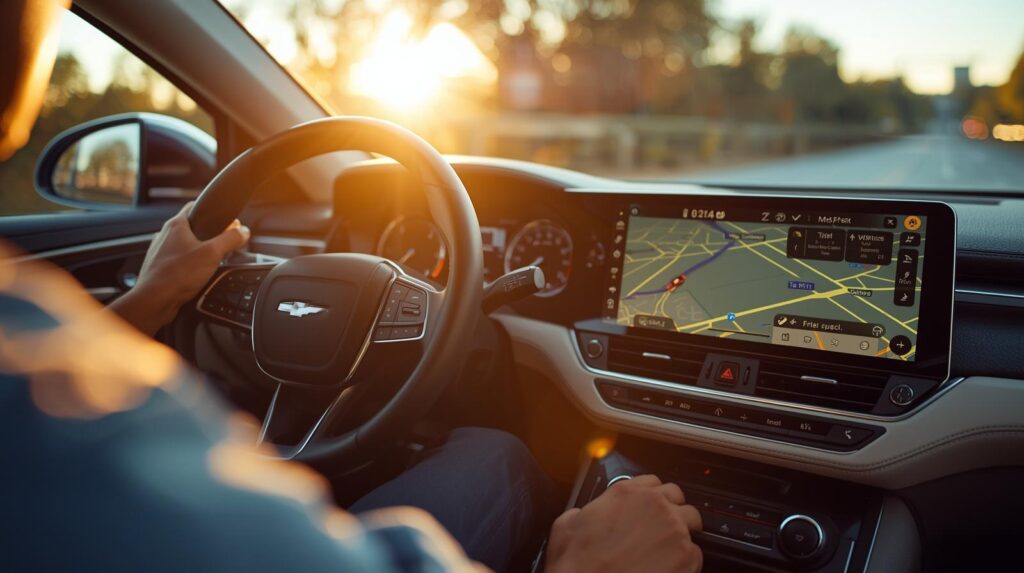
- The CarPlay interface will appear on your car’s screen automatically
- If nothing happens: Settings → General → CarPlay → tap your car’s name
First-time setup took me about 90 seconds. Every connection after that was instant as soon as I plugged in.
⚠️ Use Apple’s official cable or a MFi-certified cable. Cheap third-party cables cause connection failures more often than anything else.
Wireless CarPlay Setup
What you need: iPhone 8 or later, iOS 9 or later, car with wireless CarPlay support
Steps:
- On your car’s infotainment screen, go to Settings → Wireless CarPlay (or similar — name varies by manufacturer)
- Enable wireless CarPlay on the car side
- On your iPhone: Settings → Wi-Fi → make sure Wi-Fi is ON (wireless CarPlay uses Wi-Fi, not just Bluetooth)
- Settings → Bluetooth → make sure Bluetooth is ON
- On the car screen, select Add New Device or Pair iPhone
- Your iPhone will appear in the list — select it and confirm on both screens
- CarPlay launches automatically
After the first pairing, your iPhone connects automatically every time you get in the car — no steps required.
Step 3: Set Up Android Auto (Android)
Wired Android Auto Setup
What you need: Android 6.0 or later, USB cable, Android Auto app installed
Check first: Open Google Play Store and search Android Auto. If it shows “Installed,” you’re ready. Some newer Android phones (Pixel, Samsung Galaxy S21+) have it built in and don’t show it separately.
Steps:
- Plug your Android phone into the car’s designated USB port
- On your phone, tap Allow when Android Auto requests permissions
- If prompted, grant access to contacts, phone, messages, and location
- The Android Auto interface appears on your car screen
- If it doesn’t launch automatically: on your phone, open the Android Auto app and select your car from the list
On my Galaxy S24, the first wired connection asked me to confirm four permission screens. Slightly annoying once — never again after that.
Wireless Android Auto Setup
What you need: Android 11 or later, car with wireless Android Auto support
Steps:
- On your car’s infotainment screen, navigate to Settings → Android Auto → Wireless Setup
- On your phone: Settings → Connections → Bluetooth → turn ON
- Open the Android Auto app on your phone
- Tap the three-dot menu → Add a Car or Pair New Car
- Select your car’s name from the Bluetooth list
- Confirm pairing on both screens
- Android Auto launches on the car display
⚠️ If wireless Android Auto keeps disconnecting, go to Android Auto app → Settings → Connected Cars → delete the car and re-pair. This fixes 80% of wireless stability issues in my experience.
Step 4: Launch AI Navigation on Your Car Screen
Once CarPlay or Android Auto is running on your car’s display, getting AI navigation going takes about 30 seconds.
Google Maps (Android Auto + CarPlay)
Google Maps is the default navigation app on Android Auto and also works on CarPlay.
To start navigation:
- Tap the Google Maps icon on the car screen
- Say “Hey Google, navigate to [destination]” for hands-free input
- Or type the destination using the car screen’s keyboard
AI features now available on the car screen:
- Real-time traffic rerouting with AI-predicted delay estimates
- Lane guidance with visual overlays
- Speed trap and accident alerts (community-sourced, updated live)
- “Share trip progress” sends your ETA to a contact automatically
Apple Maps (CarPlay only)
On CarPlay, Apple Maps runs as the default navigation app.
To start navigation:
- Tap Maps on the CarPlay home screen
- Say “Hey Siri, take me to [destination]”
- Or search using the touchscreen
Apple Maps has improved dramatically since 2022. The Look Around feature, detailed city guidance, and real-time incident alerts now match Google Maps on most US routes. For iPhone users, it integrates cleanly with Siri and your calendar — if you have an appointment with an address, Siri proactively suggests navigation before you even ask.
Waze (Both Platforms)
Waze works on both CarPlay and Android Auto and remains the best option for:
- Heavy urban commutes with frequent rerouting
- Speed camera and police alert communities
- Highly congested corridors like I-95, I-405, or I-5
To use Waze on your car screen, install it on your phone first, then it appears automatically in CarPlay or Android Auto’s app list.
Step 5: Enable Voice Control So You Never Touch the Screen
This is the step most people skip — and it’s the most important one for safe driving.
On CarPlay: Siri activates with the voice button on your steering wheel (usually looks like a phone or microphone icon). Hold it for 1–2 seconds.
You can say:
- “Hey Siri, navigate to the nearest Costco”
- “Hey Siri, call home”
- “Hey Siri, what’s my ETA?”
- “Hey Siri, add a stop at Starbucks on my route”
On Android Auto: Google Assistant activates with “Hey Google” or the microphone button on the car screen.
You can say:
- “Hey Google, navigate to Denver International Airport”
- “Hey Google, find gas stations on my route”
- “Hey Google, send a message to Sarah — I’ll be there in 20 minutes”
- “Hey Google, what’s the weather at my destination?”
I set up voice activation on my first day with Android Auto and haven’t manually typed a destination into a car screen since. It’s faster, safer, and works even when you’re moving.
Troubleshooting: When It Won’t Connect
Here are the fixes that solve 90% of connection problems.
| Problem | Most Likely Fix |
|---|---|
| CarPlay not showing up | Try a different USB port; use Apple-certified cable |
| Android Auto stuck on loading | Force-close the app, unplug, re-plug |
| Wireless keeps dropping | Forget the car in Bluetooth settings, re-pair from scratch |
| No sound through car speakers | Check audio output in CarPlay/Android Auto settings |
| Navigation voice missing | Phone volume and car media volume both need to be up |
| App not appearing on car screen | Open the app on your phone first while connected |
One fix I use constantly: if CarPlay or Android Auto freezes mid-drive, hold the car’s Home button for 5 seconds. It soft-resets the infotainment connection without restarting the whole system. Works on most Ford, Honda, Toyota, and Hyundai systems.
AI Navigation Features Worth Turning On Right Now
Most people use navigation in default mode and miss the features that actually make it smarter.
Google Maps — turn these on:
- Settings → Navigation → Speedometer — shows your current speed vs. the speed limit on screen
- Settings → Notifications → Trip sharing — auto-notifies your contacts when you’re running late
- Settings → Navigation → Satellite imagery — photorealistic lane guidance in supported cities
Apple Maps — turn these on:
- Settings (on iPhone) → Maps → Driving → Road Incident Alerts ON
- Settings → Maps → Show Ratings and Photos — shows Yelp data on nearby stops while navigating
- While navigating, tap the route card → Add Stop — Siri builds multi-stop routes automatically
Android Auto — general setting:
- Android Auto app → Settings → Auto launch ON — starts navigation automatically when you connect
Frequently Asked Questions
Q1. My car is a 2016 model and doesn’t have CarPlay or Android Auto. Can I still use AI navigation on the big screen?
Yes, with an aftermarket head unit. Brands like Pioneer (pioneerelectronics.com) and Kenwood offer replacement infotainment systems starting around $200–$300 that add full CarPlay and Android Auto support to older vehicles. Installation typically runs $100–$150 at a Best Buy Geek Squad or independent car audio shop.
Q2. Does using CarPlay or Android Auto drain my phone battery faster?
Wired connections charge your phone while it runs navigation — so battery drain isn’t an issue. Wireless connections do consume more battery since the phone is running GPS, Wi-Fi, and Bluetooth simultaneously. If your car only has wireless and you’re on a long drive, keep a USB-C cable in the center console as a backup.
Q3. Can two phones be connected to the same car at the same time?
Not on the same system simultaneously. CarPlay and Android Auto each support one active phone connection at a time. However, most modern vehicles let you save multiple paired phones — switching between drivers takes about 15 seconds through the car’s Bluetooth menu.
The Bottom Line
Your car’s infotainment screen is significantly better than your phone’s small display for navigation.
Bigger map, voice control through the steering wheel, hands-free everything — once you’ve driven with a properly connected phone for a week, going back to propping your phone on the dashboard feels genuinely primitive.
The wired setup takes under two minutes. The wireless setup takes about five minutes the first time, then zero effort every time after.
Pick your connection type, follow the steps above, and you’ll have AI navigation running on your car screen before your next drive.
📎 You Might Also Like
- How to Reduce Mobile Data Usage on Your Phone (10 Easy Ways)
- Moving from Android to iOS in 2026: The Complete Seamless Data Transfer Guide

스마트폰과 IT 기기를 오랫동안 직접 구매하고 사용해온 일반 사용자입니다.
화려한 스펙보다 “실제로 쓸 만한가”를 더 중요하게 봅니다.
갤럭시와 아이폰을 병행 사용하면서 느낀 점, 설정하면서 막혔던 것들,
부모님 폰 세팅해드리며 깨달은 것들을 솔직하게 정리하고 있습니다.
특히 스마트폰을 어렵게 느끼는 분들, IT 초보자, 부모님 세대를 위한
쉽고 실용적인 가이드에 집중합니다.
“나도 해봤는데 이렇더라” — 그 한마디가 이 블로그의 시작이었습니다.
📩 문의 및 제보: kim.wasp@gmail.com