My dad called me last fall, a little flustered. He’d been trying to swap out an old emergency contact — his brother, who had passed — and replace it with my sister’s number instead. But every time he opened the Health app and saw all his medical information sitting there, he froze.
“I don’t want to mess anything up,” he said. “What if I delete the wrong thing?”
It’s one of the most common worries I hear. People set up their Medical ID once, get it right, and then don’t want to touch it. The result: outdated emergency contacts that list people who’ve moved, changed numbers, or are no longer the right person to call.
Here’s the thing — updating an emergency contact is a separate action from editing your medical data. You can change who’s listed without touching your blood type, allergies, or conditions at all. I’ll walk you through it on both iPhone and Android.
✅ Quick Summary
| What you want to do | Does it affect medical data? | Time needed |
|---|---|---|
| Add a new emergency contact | ❌ No | ~1 minute |
| Remove an old emergency contact | ❌ No | ~1 minute |
| Change a contact’s phone number | ❌ No (update in Contacts app) | ~2 minutes |
| Edit medical info (allergies, medications) | Only that field | ~2 minutes |
| Check that “Show When Locked” is still on | ❌ No | 30 seconds |
iPhone: How to Update Your Emergency Contact
Your emergency contacts live inside the Health app, in a section called Medical ID. Editing the emergency contacts section doesn’t change anything else — your medications, allergies, blood type, and conditions all stay exactly as they are.
Adding a new emergency contact
- Open the Health app
- Tap your profile photo in the top right corner
- Tap Medical ID
- Tap Edit in the top right corner
- Scroll down to the Emergency Contacts section
- Tap the + button next to “Add Emergency Contact”
- Select a person from your contacts list
- Choose their relationship (daughter, son, husband, etc.)
- Tap Done in the top right
That’s it. Everything else in your Medical ID stays untouched.
Removing an old emergency contact
- Open Health → profile photo → Medical ID → Edit
- Scroll to Emergency Contacts
- Tap the red minus (–) button next to the contact you want to remove
- Tap Delete to confirm
- Tap Done
The rest of your Medical ID is completely unaffected.
Changing a contact’s phone number
This one trips people up. The Health app doesn’t store phone numbers directly — it pulls them from your Contacts app. So if your daughter got a new number, you don’t update it inside Medical ID. You update it in Contacts, and Medical ID reflects the change automatically.
- Open the Phone app → Contacts
- Find the person and tap Edit
- Update their phone number
- Tap Done
Next time their number is needed in an emergency, the updated one will be used.
⚠️ One thing to check after any edits: Scroll to the very bottom of Medical ID and confirm that “Show When Locked” is still toggled on (green). Occasionally this can get switched off, and without it, first responders can’t see your information from a locked screen.
Android (Google Pixel): How to Update Your Emergency Contact
On stock Android with the Personal Safety app, emergency contacts and medical information are stored separately — which actually makes this easier than people expect.
Adding or removing an emergency contact
- Open Settings
- Tap Safety & emergency
- Tap Emergency contacts
- To add: tap Add contact and choose from your contacts list
- To remove: tap the contact’s name, then tap Remove
Your medical information (blood type, allergies, medications) is stored in a completely separate section — Medical information — and is not affected by anything you do in Emergency contacts.
Updating medical information separately
- Settings → Safety & emergency → Medical information
- Tap the field you want to update
- Make your change and save
Each field is independent. Changing your blood type doesn’t touch your allergies. Removing an emergency contact doesn’t touch anything medical. Everything is compartmentalized.
Samsung Galaxy: How to Update Your Emergency Contact
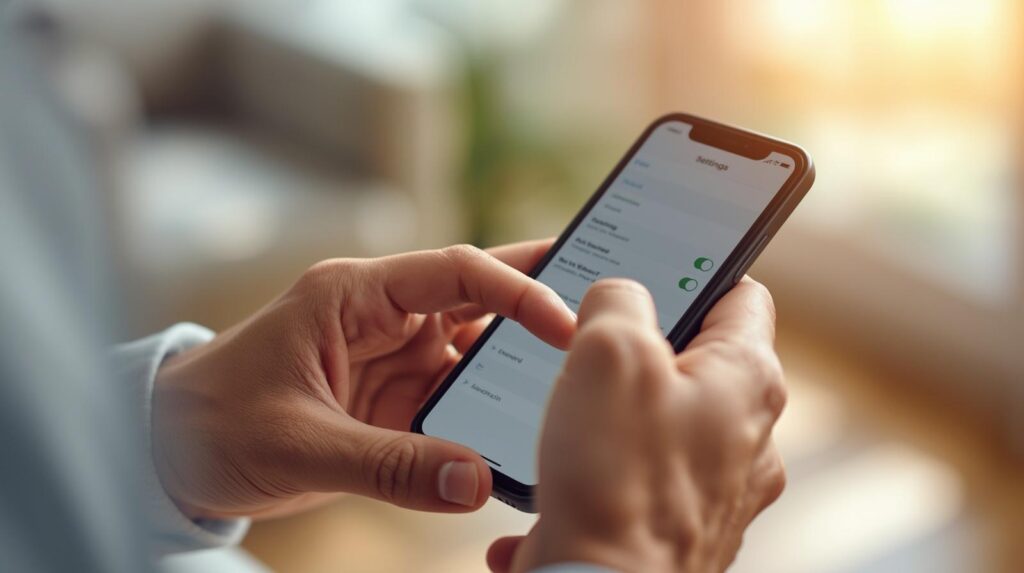
Samsung splits emergency settings into two areas inside Safety and emergency — Emergency contacts (who gets notified) and Medical info (what first responders read). They operate independently.
Updating emergency contacts
- Open Settings
- Tap Safety and emergency
- Tap Emergency contacts
- To add: tap Add member, select a contact, tap Done
- To remove: touch and hold the contact’s name, then tap Remove Samsung
- Make sure “Show on Lock screen” is toggled on
Updating medical information separately
- Settings → Safety and emergency → Medical info
- Tap Confirm if prompted
- Enter your medical information using the provided categories, such as Medical conditions, Allergies, Current medications, or Blood type. Tap Save when you’re finished. Samsung
The two sections are completely independent. Editing one never affects the other.
How Often Should You Review This?
Most people set up their emergency contacts once and forget about them for years. That’s a problem, because a lot can change.
A good rule of thumb is to review both your emergency contacts and your medical information once a year. A natural time to do it is around your birthday, or whenever you have a doctor’s appointment and your medication list changes.
Here’s what to check each time:
- Are the people listed still the right ones to call?
- Are all phone numbers current?
- Is your medication list accurate?
- Do your listed contacts still know they’re listed — and know your relevant medical details?
- Is “Show When Locked” still turned on?
I helped my mom go through this checklist last spring. We hadn’t touched her Medical ID in two years, and her listed contact was still an old family friend who’d since moved out of state and changed her number. Five minutes to fix, but it would have mattered enormously in a real emergency.
What Happens If You Delete the Wrong Thing?
If you accidentally remove an emergency contact, just add them back using the steps above. Nothing is permanently lost — you’re just re-selecting them from your existing contacts list.
If you accidentally change a field in your medical information (say, you tap the wrong blood type), just tap Edit again and correct it. There’s no confirmation required to undo a change as long as you catch it before you save.
The one thing to be careful about: on iPhone, if you tap Done after making a change, it saves immediately. So before tapping Done, take a quick look at what’s on screen to make sure it looks right.
FAQ
Q. If I remove an emergency contact, does it delete them from my regular Contacts app?
No. Removing someone from your Medical ID or Safety & emergency settings only removes them from that list. Their contact information in your Contacts app stays completely intact.
Q. Can I have more than one emergency contact?
Yes, and it’s a good idea. Tap Edit or Add next to the field you want to update Apple Support in Medical ID, and you can add multiple people. Having two contacts means that if one person doesn’t answer, there’s a backup. On Samsung Galaxy, you can add multiple members to your emergency contacts list as well.
Q. Does my emergency contact get notified when I update their information?
No. Updating your emergency contact settings is a private action on your own phone. The person you list has no idea they’ve been added or removed — unless you tell them directly, which is a good idea regardless.
Bottom Line
Updating an emergency contact is one of the safest edits you can make on your phone. Your medical information sits in its own separate section and won’t be touched no matter what you do to the contacts list.
The process takes about two minutes. The peace of mind is worth it — especially knowing that the name and number on file is someone who’s actually reachable, knows they’re listed, and knows what to do if they get that call.
You Might Also Like
- How to Set Up Emergency Contacts on iPhone for Seniors (Medical ID & SOS Guide)
- Does Your Emergency Contact Get Notified Automatically? The Truth About SOS Alerts

스마트폰과 IT 기기를 오랫동안 직접 구매하고 사용해온 일반 사용자입니다.
화려한 스펙보다 “실제로 쓸 만한가”를 더 중요하게 봅니다.
갤럭시와 아이폰을 병행 사용하면서 느낀 점, 설정하면서 막혔던 것들,
부모님 폰 세팅해드리며 깨달은 것들을 솔직하게 정리하고 있습니다.
특히 스마트폰을 어렵게 느끼는 분들, IT 초보자, 부모님 세대를 위한
쉽고 실용적인 가이드에 집중합니다.
“나도 해봤는데 이렇더라” — 그 한마디가 이 블로그의 시작이었습니다.
📩 문의 및 제보: kim.wasp@gmail.com