I’ll be honest — I resisted this for way too long.
My car had a built-in navigation system, and I figured it was good enough. Then a friend hopped in my passenger seat, glanced at the screen, and said, “You’re still using that?”
He plugged in his phone, Apple CarPlay loaded up, and suddenly my dashboard looked like a completely different car. Real-time traffic. AI rerouting. Siri responding to voice commands while his hands stayed on the wheel.
That was the last time I used the factory nav.
If you’ve been meaning to set this up but never got around to it — this guide walks you through the whole process, step by step.
✅ Quick Summary
| Method | Best For | Requires |
|---|---|---|
| Apple CarPlay (wired) | iPhone users, most reliable | USB-A or USB-C cable |
| Apple CarPlay (wireless) | iPhone users, cable-free | Wi-Fi + Bluetooth |
| Android Auto (wired) | Android users, wide compatibility | USB cable + Android Auto app |
| Android Auto (wireless) | Android users, clean setup | Wi-Fi 5GHz + Bluetooth |
| Google Built-In | Newer cars with Google integration | No phone needed |
Most cars made after 2017 support at least one of these. Check your car’s head unit model if you’re not sure.
First, Check If Your Car Is Compatible
Before anything else, you need to confirm your car’s infotainment system supports smartphone integration.
Here’s the fastest way to check:
- Look at your dashboard screen. If you see a CarPlay or Android Auto logo in the settings menu, you’re good.
- Check your car’s manual or search “[your car make + model + year] Apple CarPlay Android Auto” on Google.
- Look up your head unit brand — Pioneer, Kenwood, Alpine, and Sony aftermarket units almost all support both systems.
If your car doesn’t support either natively, an aftermarket head unit can be installed for around $150–$400 at Best Buy or an auto parts store. That’s a one-time upgrade that transforms your driving experience entirely.
I drove a 2018 Honda Civic that didn’t have wireless CarPlay, so I bought a $180 Pioneer unit and had it installed in about an hour. Completely worth it.
How to Set Up Apple CarPlay (iPhone)
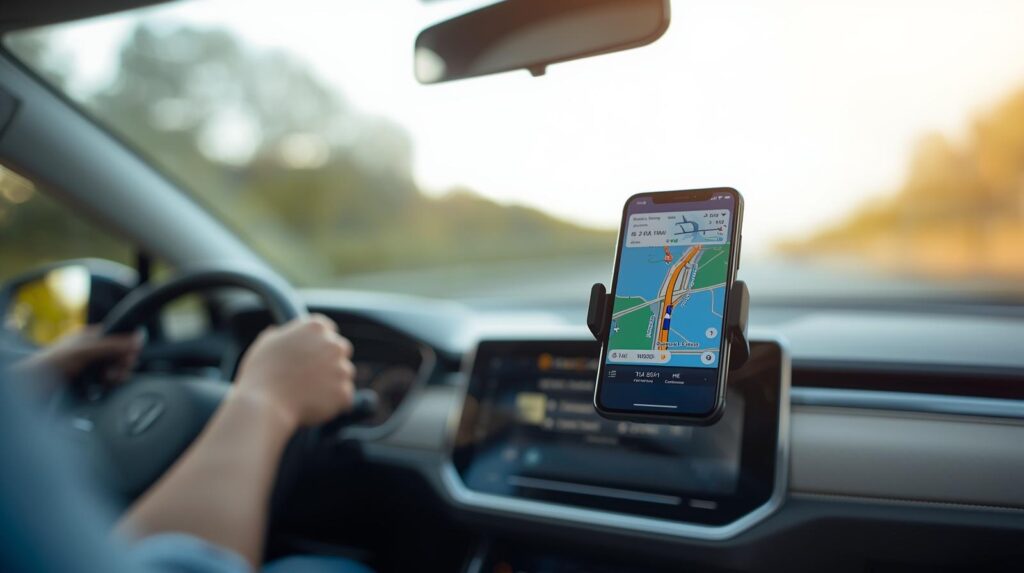
CarPlay turns your car’s touchscreen into an extension of your iPhone. You get Apple Maps, Google Maps, Waze, Siri, and your music apps — all on the big screen.
Wired CarPlay Setup (2–3 minutes)
Step 1. Plug your iPhone into your car’s USB port using a Lightning or USB-C cable. Use an Apple-certified cable — cheap third-party cables sometimes don’t trigger CarPlay.
Step 2. Your car’s screen should automatically prompt: “Do you want to use CarPlay?” Tap Allow.
Step 3. On your iPhone, go to Settings → General → CarPlay to confirm the connection and customize which apps appear.
Step 4. The CarPlay home screen will appear on your dashboard. From here, tap Maps, Waze, or Google Maps to start navigating.
💡 If it doesn’t connect automatically, check that Siri is enabled: Settings → Siri & Search → toggle on “Listen for Hey Siri.”
Wireless CarPlay Setup
Your iPhone and car both need to support wireless CarPlay. Most iPhones from iPhone XR (2018) onward support it. For your car, check the settings menu for a “Wireless CarPlay” option.
Step 1. On your iPhone, enable Bluetooth and Wi-Fi — both need to be on simultaneously.
Step 2. In your car’s settings, select Wireless CarPlay or Connect New iPhone.
Step 3. Your iPhone will detect the car. Tap Connect when prompted.
Step 4. After the first pairing, your iPhone connects automatically every time you start the car. No cable needed.
⚠️ Wireless CarPlay can occasionally lag during heavy GPS use. If navigation feels sluggish, switching to wired gives you a more stable connection.
How to Set Up Android Auto
Android Auto works similarly to CarPlay but is designed for Android phones. It supports Google Maps, Waze, Spotify, Google Assistant, and most major apps.
Compatibility: Android 9.0 or higher. Most Samsung Galaxy, Google Pixel, and OnePlus phones from 2019 onward work without any issues.
Wired Android Auto Setup
Step 1. Download the Android Auto app from the Google Play Store if it’s not already installed. On Android 10+, it’s built in.
Step 2. Connect your phone to your car via USB. Use the cable that came with your phone for best results.
Step 3. Your car’s screen will display an Android Auto setup prompt. Follow the on-screen steps — it takes about 90 seconds.
Step 4. Tap Google Maps or Waze on the Android Auto home screen to start navigation.
Step 5. To use voice commands, say “Hey Google” — no need to touch the screen while driving.
Wireless Android Auto Setup
Step 1. Enable Bluetooth on your phone and pair it with your car’s system first.
Step 2. In your car’s settings, look for Android Auto → Add New Phone or Wireless Android Auto.
Step 3. On your phone, open Android Auto settings → Previously connected cars and confirm the connection.
Step 4. Once paired, your phone connects wirelessly every time you enter the car.
💡 For wireless Android Auto, a 5GHz Wi-Fi connection works significantly better than 2.4GHz. If your phone gives you the option during setup, always choose 5GHz.
AI Navigation: Which App Should You Use?
Once you’re connected, the next decision is which navigation app to run. In 2026, all three major options have solid AI features — but they work differently.
| App | AI Feature | Best For |
|---|---|---|
| Google Maps | Predictive rerouting, real-time traffic AI | Daily commuters, most accurate ETA |
| Waze | Crowd-sourced hazard alerts, speed trap warnings | Road trip drivers, highway driving |
| Apple Maps | Siri integration, Look Around view | iPhone users who prefer Apple ecosystem |
I’ve used all three extensively on road trips. For pure AI navigation accuracy, Google Maps is still the gold standard in 2026 — especially in cities. Waze is unbeatable for spotting police and accidents on highways. Apple Maps has closed the gap significantly, but I still default to Google for anything unfamiliar.
To set your default navigation app in CarPlay: Settings → General → CarPlay → [Your Car] → Customize — then arrange your preferred nav app to the first position.
Troubleshooting Common Connection Problems
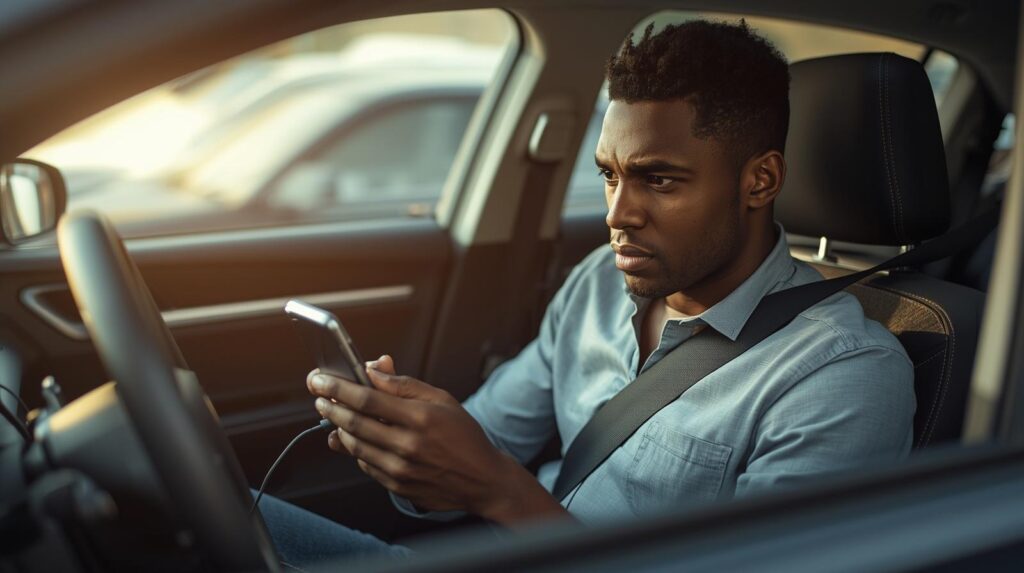
Things don’t always go smoothly on the first try. Here are the fixes that actually work.
CarPlay or Android Auto not showing up:
- Try a different USB cable first — this solves it about 60% of the time
- Restart both your phone and your car’s infotainment system
- On iPhone: Settings → General → CarPlay → Forget This Car → reconnect from scratch
Wireless connection keeps dropping:
- Keep your phone’s screen on while connected — some phones sleep and drop the session
- On Android: Settings → Battery → turn off “Adaptive Battery” for Android Auto
- Move your phone closer to the dashboard; thick phone cases can weaken the Bluetooth signal
Navigation audio not playing through car speakers:
- In Google Maps or Waze, go to Settings → Navigation → Play voice over Bluetooth
- In CarPlay, check Settings → Maps → Navigation Voice Volume and set to Normal
Phone gets hot during navigation:
- This is normal during long drives — the screen, GPS, and data are all running simultaneously
- Plug into a powered USB port (not just a data port) so your phone charges rather than drains
Extra Tips for a Better In-Car AI Experience
A few things I wish I’d known earlier:
- Use Google Assistant or Siri hands-free — in most US states, holding your phone while driving is illegal. Set up voice activation before you drive.
- Download offline maps for road trips. In Google Maps: tap your profile icon → Offline Maps → Select an area. This saves you when you hit dead zones on the interstate.
- Enable “Driving Mode” on your phone before long trips — it silences non-urgent notifications and keeps your screen focused on navigation.
- If you drive an EV, Google Maps now integrates charging stop planning directly into routes. It automatically adds charging stops based on your battery level and the charger network your car supports.
For more ways to cut down on data usage during long navigation sessions, check out our guide on How to Reduce Mobile Data Usage on Your Phone.
Frequently Asked Questions
Q. Do I need a data plan to use navigation through CarPlay or Android Auto? A. Yes — Google Maps and Waze use mobile data for real-time traffic updates. You can reduce data usage by downloading offline maps in advance. Apple Maps uses slightly less data than Google Maps for typical routes.
Q. Can I use CarPlay and Android Auto on the same car? A. Yes. Most cars that support one support both. CarPlay loads when an iPhone is connected; Android Auto loads when an Android phone is connected. The car doesn’t need any separate configuration for each.
Q. My car is from 2015 and has no built-in screen. Can I still use this? A. Yes. An aftermarket head unit (Pioneer, Kenwood, Alpine) with CarPlay and Android Auto support can be installed for $150–$400 including installation at Best Buy’s Geek Squad or a local auto shop. It’s one of the best upgrades you can make to an older vehicle.
Q. Does wireless CarPlay drain my battery faster? A. It uses slightly more battery than wired because Wi-Fi and Bluetooth run simultaneously. If your car’s USB port delivers charging power (most do), the battery drain is offset. If you’re on a very long drive, wired is safer for battery health.
You Might Also Like
- How to Reduce Mobile Data Usage on Your Phone (10 Easy Ways) — Keep your data bill in check on long road trips with navigation running all day.
- Is Your Smartphone Spying on You? How to Audit App Permissions (2026 Guide) — Navigation apps request a lot of permissions. Here’s how to review what you’ve given access to.